

Headless SDK and Headless API
Add virtual try-on to a Shopify storefront, partner app, or mobile app. Use the browser SDK for Antla’s UI. Use the Headless API when you build the UI.
Copy the script URL, API base URL, and key from the merchant’s Antla installation. The SDK page labels the credential Antla SDK key. The API page labels it Antla Headless key. Same value. Examples use production hosts and YOUR_ANTLA_SDK_KEY. If your install shows different hosts, copy those instead.
Build with your coding agent
Section titled “Build with your coding agent”Paste this into Claude Code, Cursor, or another coding agent from your project root. It loads the Antla skill and walks you through setup as a conversation.
Help me add Antla virtual try-on to this project. Act as my integration guide and work through it with me as a conversation.
1. Load the Antla integration skill from https://antla.io/skill/antla-try-on/SKILL.md and read the reference files it points to as you need them. If you support installable skills, download https://antla.io/downloads/antla-try-on-skill.zip and install it into your skills folder first.2. Before asking me anything, inspect this codebase: the framework, the product page, how it knows the current product and variant, and how the cart works.3. Ask me one question at a time. Help me choose between the Headless SDK (Antla's UI) and the Headless API (my own UI), then ask only for what that path needs, such as the script URL, the API base URL, and the Antla key. Never ask me for Shopify private Storefront tokens or Admin credentials.4. Propose a short plan and wait for my go-ahead. Then implement it one step at a time, explaining each change.5. Finish by walking me through the launch checklist from the skill.
Quickstart
Section titled “Quickstart”Connect Headless SDK, load the script once, and place the element on the product page.
<script src="https://cdn.app-antla.com/antla-sdk/antla-sdk.js" defer></script><antla-block sdk-key="YOUR_ANTLA_SDK_KEY" product-id="gid://shopify/Product/123" variant-id="gid://shopify/ProductVariant/456" cart-url="/cart" language="EN"></antla-block>Pass the product and variant the shopper is viewing. If the storefront already has a cart, set cart-id to that shopper’s full Storefront cart ID, including any ?key= suffix. Placement and cart sync are in Headless storefront.
If you own the UI, connect Headless API and call the API in this order. You do not need Storefront tokens in Antla.
- Read the product from your catalog. Call
GET /funnel?funnelIds=with the IDs from tags namedantla_in_funnel_<id>. POST /uploads, then PUT the photo bytes to the returned URL.POST /generationsonce. SavejobId.GET /generations/{jobId}untilstorageStatusisREADY, or the job isERROR.- Add the variant with the Shopify Storefront Cart API if the shopper is buying.
GET /context works only after Headless SDK is connected. API-only shops receive 403 SDK_NOT_CONFIGURED. Request bodies are in Custom UI workflow.
Which guide
Section titled “Which guide”| You are building | Start here | You own |
|---|---|---|
| Deciding SDK vs API | Choose SDK or API | Which integration to enable |
| A headless Shopify product page with Antla’s UI | Headless storefront | Placement, the selected variant, and the shared cart |
| A custom try-on UI or partner app | Partner apps and Custom UI workflow | UI, photos, identity, polling, errors, and cart |
| A native iOS, Android, or React Native app | Mobile apps | Native UI, HTTP, image preparation, and checkout |
| An app WebView around Antla’s UI | WebView | The hosted page, permissions, and navigation |
Two integrations, one store
Section titled “Two integrations, one store”Headless SDK registers <antla-block>. It loads the product and the merchant’s Antla settings, accepts a photo, uploads it, starts a generation, polls the result, and adds the variant to a Shopify cart. Connecting it requires Storefront tokens.
Headless API is JSON over /api/headless. Generation, upload, Funnel lookup, email status, and visitor registration work with the key alone. Cart changes stay on the Shopify Storefront Cart API. Connecting it does not require Storefront tokens.
Both require an enabled connection for one Shopify store. Products, variants, and Funnels belong to that store. One key is shared if both are on.
Generation lifecycle
Section titled “Generation lifecycle”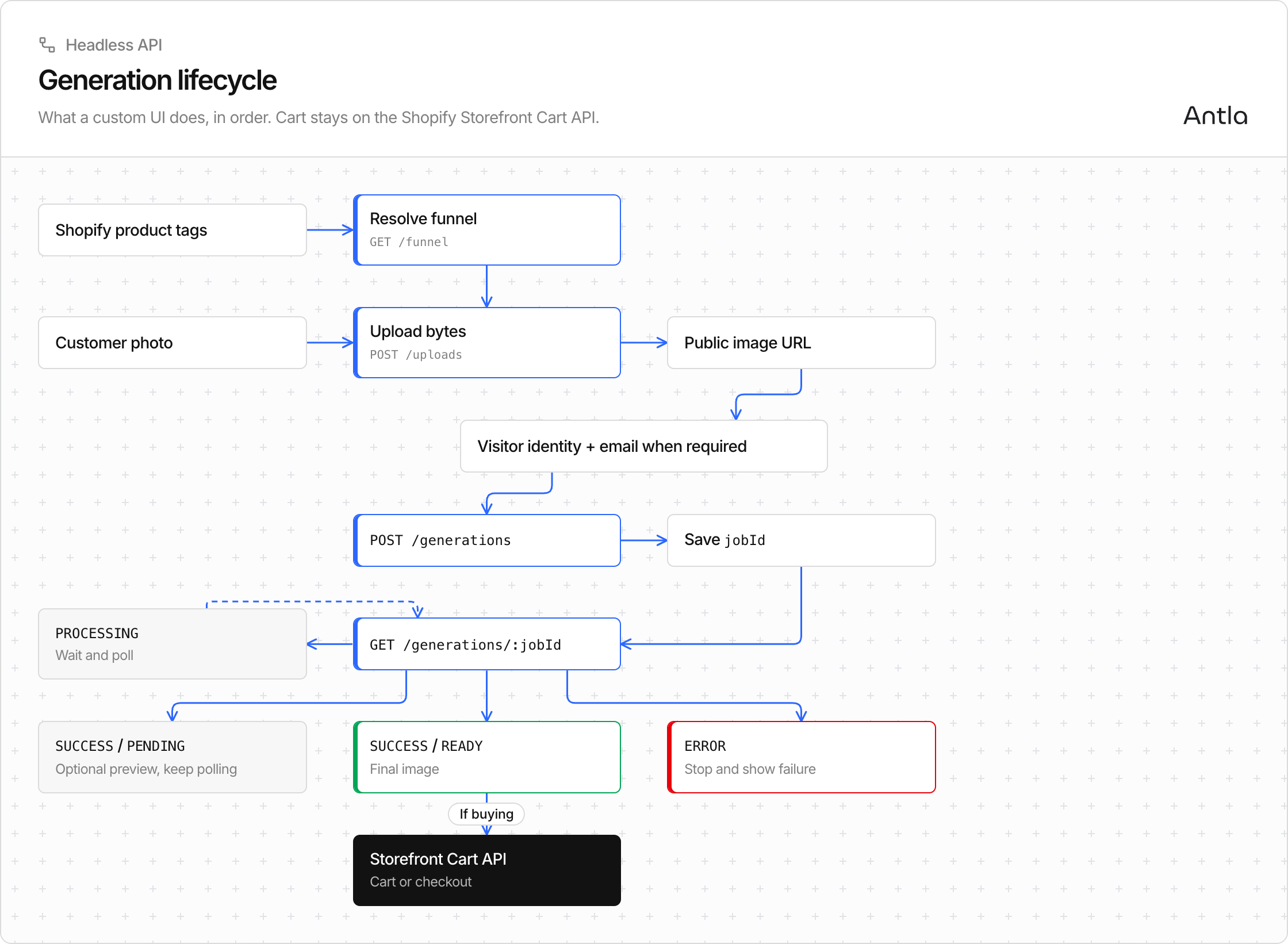
A successful generation POST returns a job ID. The image arrives on a later poll. Show a PENDING image as a preview. Use the image from READY.
Not in this API
Section titled “Not in this API”There is no public npm package, native iOS or Android SDK, partner OAuth API, completion webhook, job list, cancellation endpoint, or idempotency key.
Theme integration, including antla_* events, is documented at antla.io/docs. Those events do not fire from <antla-block>.
Questions: aaron@antla.io.