

Connect Headless SDK
Headless SDK adds Antla’s Try On UI to a custom Shopify storefront. The merchant stores Storefront public and private access tokens in Antla. Your page loads a script and <antla-block>.
Use this when you want Antla’s interface. Use Headless API when you build the interface yourself. To choose, see Choose SDK or API.
Prerequisites
Section titled “Prerequisites”- Antla is installed on the merchant’s Shopify store.
- At least one product is assigned to an Antla Funnel and has a usable product image.
- The store has generation credits.
- You can manage the storefront’s Storefront API access.
- The product is published to the storefront that will host the block.
1. Prepare Storefront API access
Section titled “1. Prepare Storefront API access”Create or select the intended storefront in Shopify’s Headless channel. Obtain its public and private Storefront access tokens. Shopify’s Storefront API setup guide explains how to create storefronts and manage permissions.
The public token must support the data Antla queries. That includes shop details and settings, product IDs and tags, product images, variants, variant images, and availability. Test those queries, including tags, with the public token. A token that can only fetch the shop name is not enough.
Confirm the product is published to the relevant storefront. An Admin API product ID existing in Shopify does not ensure the Storefront API can return that product.
2. Connect in Antla
Section titled “2. Connect in Antla”- Open Antla → Integrations.
- On Headless SDK integration, click Connect SDK integration.
- In Connect Shopify Headless, enter Storefront public access token and Storefront private access token.
- Save.
- Open Headless SDK integration and copy the SDK key and SDK script URL.
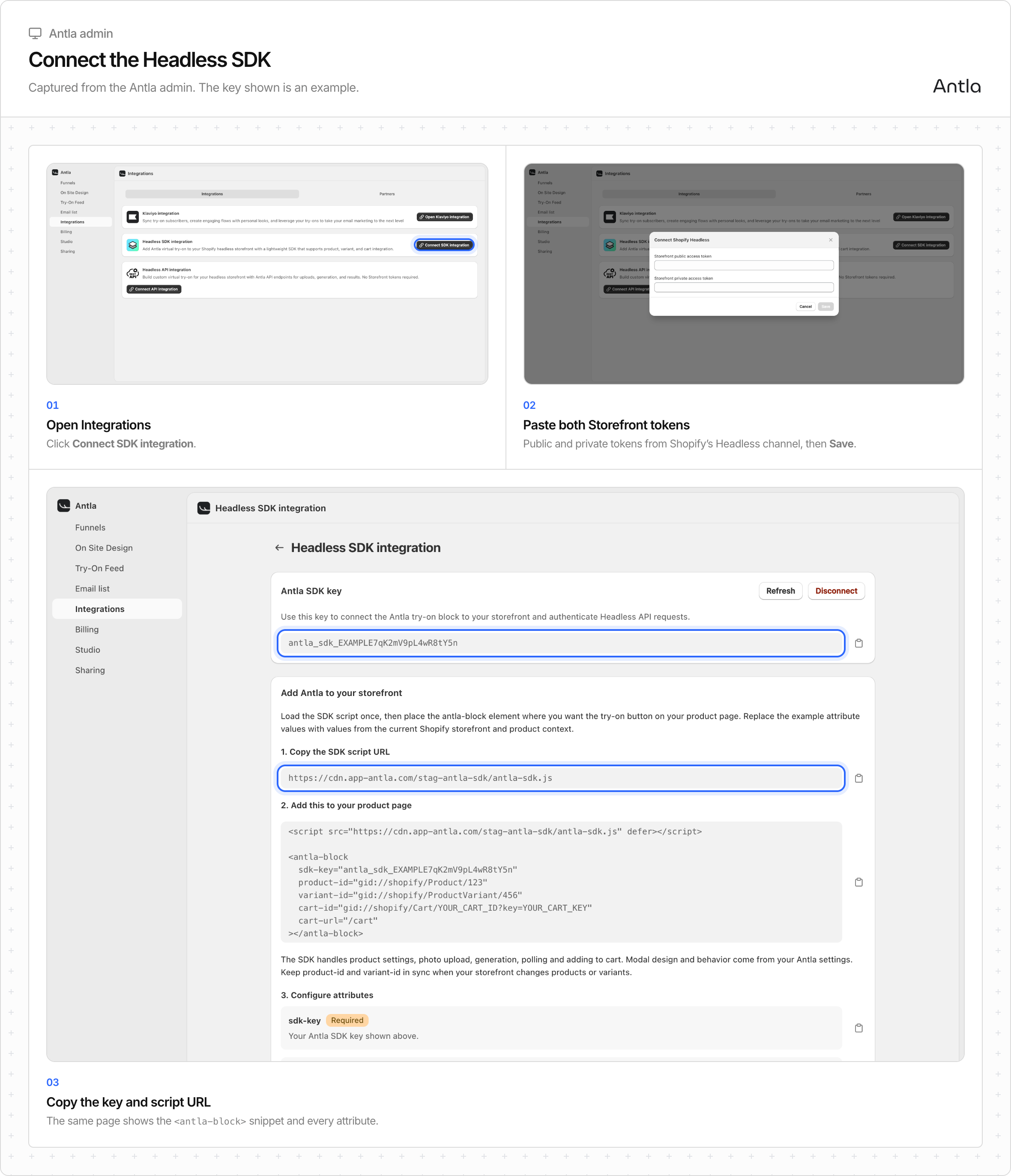
The connection validates the public token’s query capabilities and validates the private token against the same shop. It configures the Antla settings metafield for public storefront access.
The private token belongs in this merchant-admin setup, never in storefront HTML, browser code, a mobile bundle or these docs. The SDK key is a different credential.
If the API integration was already on, Antla keeps the same Headless key.
3. Prepare a product
Section titled “3. Prepare a product”Assign the product to an Antla Funnel in Antla. Shopify product tags identify the relationship:
antla_in_funnel_123Here, 123 is a Funnel ID. It is not a product ID or variant ID. Do not invent tags as a replacement for configuring a Funnel in Antla.
The product needs a photo. Antla uses the variant image when one exists, otherwise the first product image. The shopper photo is separate.
4. Add the SDK to the product page
Section titled “4. Add the SDK to the product page”Load the script URL you copied from Headless SDK integration once in the document. Place <antla-block> on the product page with the SDK key and the product the shopper is viewing.
<script src="https://cdn.app-antla.com/antla-sdk/antla-sdk.js" defer></script><antla-block sdk-key="YOUR_ANTLA_SDK_KEY" product-id="gid://shopify/Product/123" variant-id="gid://shopify/ProductVariant/456" cart-url="/cart"></antla-block>Copy the exact script URL from the merchant’s Antla install if it differs. Keep product-id and variant-id in sync with the page. Placement, variant changes, and cart identity are in Headless storefront.
5. Verify the connection
Section titled “5. Verify the connection”Use the installation’s API base URL and key. The SDK page does not show the API base URL. The API page does, and the pattern is {app origin}/api/headless.
curl --fail-with-body \ -H "X-Antla-SDK-Key: YOUR_ANTLA_SDK_KEY" \ "https://app-antla.com/api/headless/context"An HTTP 200 response contains a Shopify Storefront API URL and public token. This verifies authentication and that SDK is connected. It does not prove product eligibility, credits, checkout, or a live generation.
Then query the chosen product through that returned Storefront API connection and confirm tags, images and the intended variant’s availableForSale. Custom UI workflow contains a query.
API-only shops cannot use this check. They get 403 SDK_NOT_CONFIGURED.
6. Keep setup in sync
Section titled “6. Keep setup in sync”Refreshing the key invalidates the old key immediately for the SDK and the API. Disconnecting the SDK removes the saved Storefront tokens. The merchant can keep the API integration active or disconnect both.
Updating Shopify permissions or publication can change what the SDK can load. Retest after token rotation, reconnecting, channel changes, product changes or changes to Antla settings.
Done when
Section titled “Done when”/context returns 200. The tagged product loads through that Storefront connection. <antla-block> completes a generation on an available variant and the line appears in the storefront cart. Then run the launch checklist.