

Virtual Try-On Adoption Rate: Definitions and Benchmarks
Try-on adoption is starts divided by sessions that could start one. Compare your own placement and device, then set the next target from your last month first.

A virtual try-on adoption rate is started previews divided by the sessions that could have started one. There is no category benchmark I would trust enough to copy, and I will not invent one here. Compare your mobile placement with your desktop placement, then set the next test against your own last four weeks on the same templates.
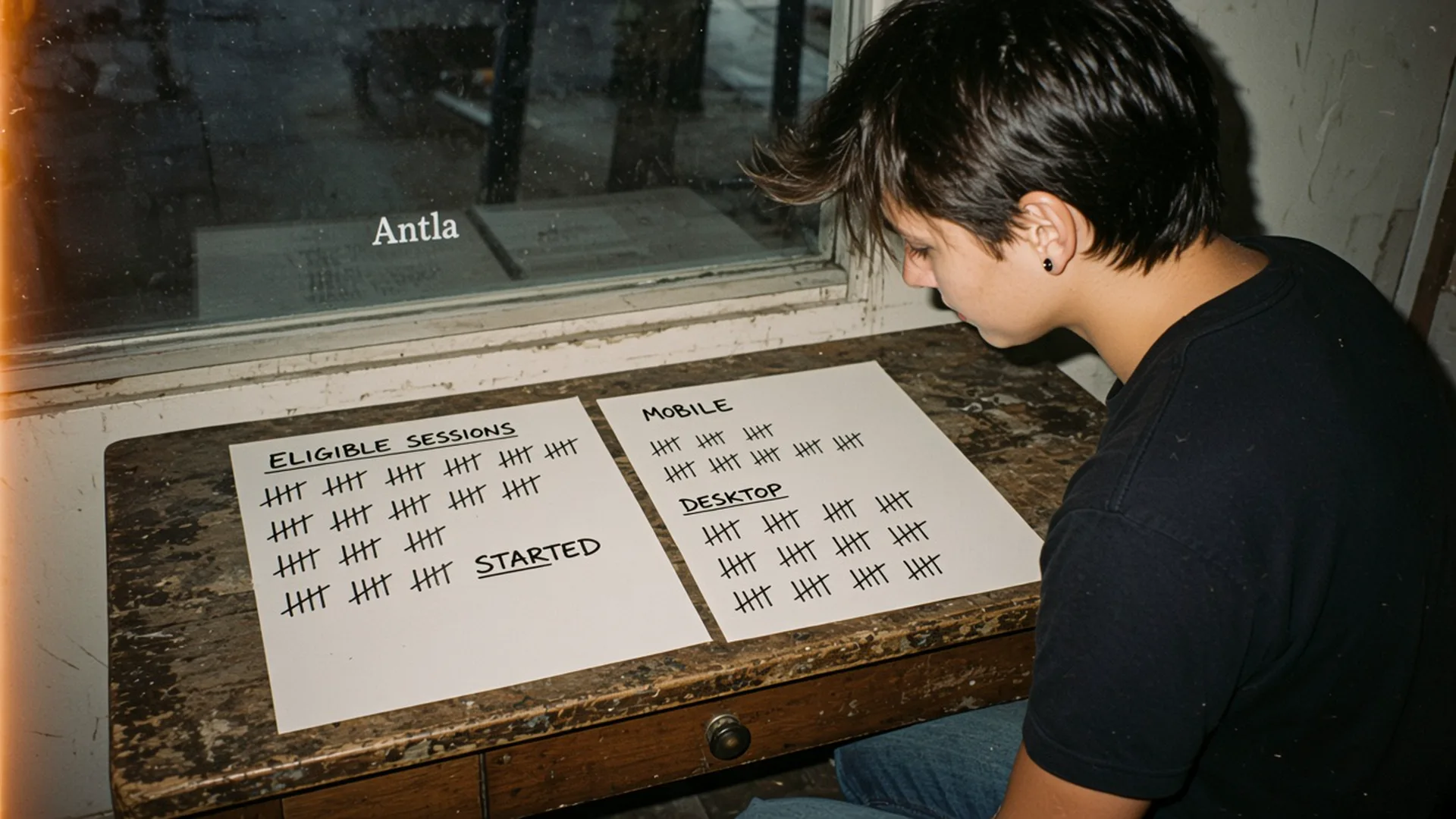
Eligible sessions fill one sheet. Starts fill a shorter line. Mobile and desktop are separate piles. Editorial image in Classic Antla disposable-camera style.
“What is a good adoption rate?” usually means “is my button broken, or is this normal?” The second half has no honest number in public. Stores differ in price, category, how buried the control is, and whether the photo upload feels worth it. A single percentage pulled from a vendor deck mixes those and then gets treated as a grade.
What you can define tightly is your own rate, on your own pages. Adoption is a placement metric. It tells you whether eligible shoppers are starting. It does not tell you whether those starts cause orders. Order impact is a holdout, covered in measuring virtual try-on incrementality.
Define denominator
Write the formula before you pull a chart:
Adoption = started previews / eligible sessions
Started means the shopper took the first real step you care about. I use “upload began” or “generation requested,” and I write which one in the report. A button impression is not a start. A completed image is a finish. Mixing starts and finishes will make a slow generator look like a low-adoption button.
Eligible sessions are sessions that reached a product page where the tool could run: the variant is in stock, the product type is supported, and the theme block is on the template. Sessions on the home page, a journal post, or a product you excluded do not enter the denominator. If they do, the rate collapses for a reason that has nothing to do with the button.
| Candidate denominator | What it answers | Use it for adoption? |
|---|---|---|
| All store sessions | How loud is the tool across the whole site? | No. Most sessions never see it |
| Product-page sessions on eligible templates | Could this session have started? | Yes. This is the denominator |
| Sessions that saw the button | Did the control get a look? | A diagnostic, not the headline |
| Completed previews | Did the generation finish? | A completion rate, pair it beside adoption |
Count sessions or shoppers, and stick to one. I prefer shoppers per week when a person browses three eligible products in a visit, because a single curious upload would otherwise count as three failures. If your analytics tool makes sessions easier, use sessions and say so. The behavior reports in Shopify are a check on session totals. They will not know which sessions were eligible for a preview. That flag has to come from your theme or your pixel: an event when an eligible product view happens, and an event when a start happens.
Publish the numerator and the denominator next to the percentage. “4.2% adoption” with 800 starts and 19,000 eligible sessions is a different conversation from “4.2%” alone. Small denominators swing. I would not manage a template with fewer than a few hundred eligible sessions a week off a one-week rate.
Completion sits beside adoption, not inside it:
Completion = finished previews / started previews
A high start rate and a low completion rate means the upload, the wait, or the error state is the problem. A low start rate and a high completion rate means people who try it finish, and the people who never try it are the project. Those are different fixes.
Antla gives merchants a feed of recent try-on images, which is a numerator you can look at. It does not publish a category adoption benchmark, and this article will not supply one to fill the gap. Your denominator is still the eligible traffic on your theme.
Segment placement and device
A single store rate hides the only comparisons that change a decision. Split the same formula by where the control sits and by device.
Placement means the position of the entry relative to the gallery and the add-to-cart button. I would tag at least three:
- In the gallery, as a frame or a control on the media.
- Beside add to cart, in the buy column.
- Below the description, where only a determined shopper scrolls.
Device means at least mobile and desktop. A control that is comfortable with a mouse can be a thumb-reach problem on a phone, and fashion traffic is mostly the phone. Shopify’s product page guide is the reminder that the page is a stack of jobs. Adoption tells you whether the preview job is where the hand already is.
Read a grid, not a single cell. Illustrative counts for one week, invented so the layout is clear, and not a target:
| Eligible sessions | Starts | Adoption | |
|---|---|---|---|
| Mobile, control in the gallery | 8,000 | 420 | 5.3% |
| Mobile, control below the description | 2,000 | 30 | 1.5% |
| Desktop, control in the gallery | 2,400 | 160 | 6.7% |
| Desktop, control below the description | 600 | 18 | 3.0% |
In this made-up grid, the below-the-fold mobile cell is the weak one, and it is also a smaller bucket. The gallery cells are the internal comparison. I would not average them into 4% and call the page fine.
Source is the third split when you have the volume: paid social versus search versus email. A cold paid click and a returning email click bring different willingness to upload a photo. If adoption is healthy on email and near zero on paid social, the button may be fine and the landing expectation may be wrong. The leak map for apparel is the wider version of that split.
New versus returning shoppers matter for the same reason. A returning customer may already have a photo cached. A first visit pays the upload cost in full. Report them separately before you decide the control “does not work” on first visits. It may work, at a lower start rate, because the cost is higher.
Compare internally
The comparison group for an adoption rate is another cell in your own grid: last month versus this month on the same template, mobile gallery versus mobile below the fold, hero dresses versus hero tees. It is not a number from another brand.
Keep the definition frozen when you compare. If last month counted button clicks and this month counts uploads, the delta is a measurement change. Log the date you changed the event, the way you would log a theme deploy.
A few internal reads I trust:
- Same placement, mobile versus desktop. A large gap points at layout, tap target, or camera permissions.
- Same device, two placements. The higher cell is your best current pattern. Move the weaker template toward it and read adoption again.
- Same cell, week over week, after a theme change. This is how you catch a deploy that pushed the control under a reviews widget.
- Starts versus eligible, by SKU group. A dress with full photography and a tee with one flat lay are different invitations. Low adoption on the thin gallery is a coverage problem as much as a button problem.
Ignore these comparisons:
- Your rate versus a figure in a sales deck that does not publish the denominator.
- Try-on-user conversion used as a stand-in for adoption. One is orders among people who finished. The other is starts among people who could start. The metrics breakdown keeps those denominators apart.
- A store-wide conversion rate. It answers a third question.
When two internal cells disagree, believe the one with more eligible sessions. A 12% adoption rate on 40 desktop sessions is a story. A 5% rate on 8,000 mobile sessions is the business.
Set test targets
A target is a change you will try to beat on a named cell, against your own baseline. It is not a grade from the industry.
Pick one cell. I would start with mobile, gallery placement, hero category. Record the last four weeks: eligible sessions, starts, adoption, completion. That baseline is the target’s parent.
Then set a test, one change only:
- Move the control from below the description into the gallery, or
- Shorten the upload step, or
- Change the button from a vague “Try on” to “Preview how it looks,” which also matches the disclosure you owe the shopper.
The target can be plain: “Raise mobile gallery adoption on hero dresses from the four-week baseline by a margin we can see, without dropping completion.” If you want a number in the doc, derive it from your baseline. A team whose baseline is 2% might try for 3% on the same cell. A team at 8% might try for a cleaner completion rate instead of more starts. I will not print a universal target. Your four-week sheet is the only honest one.
Pre-write the stop rule. Two weeks, same cell, same definition. If adoption rises and completion falls, you recruited people who bounce out of the uploader. That is not a win. If adoption does not move, the control is not the constraint. Look at the offer, the photo ask, or whether the gallery already answers the question.
Adoption targets do not replace an order target. You can raise starts and leave orders flat, which means interested shoppers tried a preview and bought as they would have anyway. When adoption is stable enough to read, run an order holdout before anyone calls the feature a conversion project. The on-site conversion guide is the activity story that holdout has to sit beside. Adding the app is the install path. The rate on this page is how you know the install is visible.
Shopify’s testing guide is the right companion when the placement change is large enough to randomize. A before-and-after on one template is acceptable for a first look at adoption, and it is weaker than a split, because a campaign can land in the “after” week. Say which design you used.
Write the formula on the dashboard
Put the formula in the chart subtitle: starts divided by eligible product sessions, mobile gallery, hero dresses, last 28 days, with the raw counts. Add the desktop gallery cell beside it. Set the next target off those two numbers.
Leave a blank where a category benchmark would have gone. Filling it with a guess would make the blank look like a standard. You do not have one. You have a denominator and a placement to fix.
About the author: Aaron founded Antla. He would like adoption charts to show the denominator in the same size as the percentage.