

Virtual Try-On Before the PDP: Placement Options
Place virtual try-on before the product page with an entry that keeps the garment attached, hands off to the PDP, and measures assisted conversion on Shopify.

You can start a try-on decision before the product page by pointing a homepage or collection module at one specific garment, then opening that product page with the same color and the preview already available. Keep the product attached to the click, plan the handoff so the shopper does not hunt again, and measure orders assisted by that entry against shoppers who reached the same product without it.
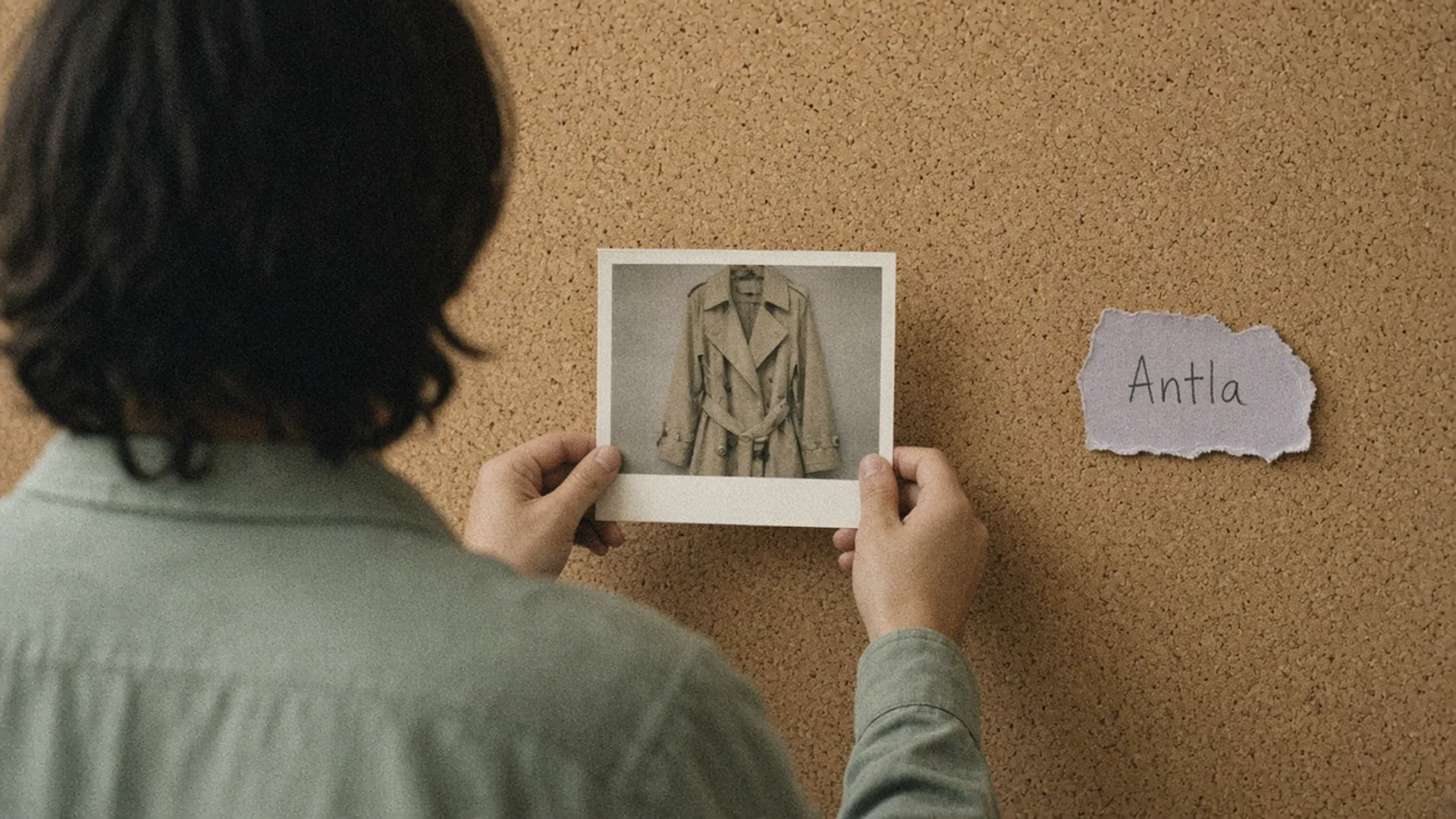
The entry can live on the wall. The preview still needs a single garment. Editorial image in Classic Antla disposable-camera style.
A homepage button that says “Try it on” and lands on a 40-product collection has not moved try-on earlier. It has added a slogan to a grid. The shopper still has to find a garment, open a product page, and only then discover whether a preview exists. The merchant prompt is more precise than that: can someone start the outfit question before the product page opens?
They can, if the earlier module already knows which product it means. Adding virtual try-on on Shopify is the install. This is placement.
Define homepage and collection entry points
Antla renders a shopper’s uploaded photo in a popup, on the product page, or in the image gallery. That is the supported surface. There is no separate homepage generator that tries on the whole catalog from a hero. An earlier entry is a merchandised link into that product surface.
Shopify themes are assembled from sections and blocks in the theme editor. Use a section that can point at one product, not a section that only points at a collection.
| Entry | What the shopper sees first | When it is honest | When it is decoration |
|---|---|---|---|
| Homepage featured product | One garment, one color, a line that says they can preview it on a photo | A hero SKU, a drop, a piece people already ask about | The button opens “new arrivals” |
| Homepage look module | One outfit, each piece linked, preview offered on the lead piece | The look is the campaign | The look is a JPEG with no product |
| Collection featured row | The first tiles of a tight edit, each tile opening its own product | A 6-look campaign collection | A 200-SKU category, identical buttons on every card |
| Campaign page | The ad or email’s exact piece, then the product page | One promise, one URL | A second grid that repeats the collection |
Pick one entry for the test. A homepage module and a collection row and a campaign page in the same week will share every order.
The theme article on virtual try-on compatibility still applies, because the preview itself sits on the product template. If that template hides the block on mobile, an earlier button only delivers a disappointment faster. Check the product template before you design the homepage.
Maintain product context
The click has to carry a product, a color, and a reason. “Shop the edit” carries none of those.
Store three facts on the module, even if the implementation is just a careful link:
- Product. The destination is a product URL, not a collection URL with the hope that shoppers will choose well.
- Variant. If the hero image is the sand coat, the product page opens on sand. A default black variant makes the entry look like a bait.
- Intent. You do not need a novel analytics stack to start. A distinct link, a campaign parameter, or a section name you can find in landing-page reports is enough to know the session touched the module.
Lose any one of those and the later report will take credit for ordinary product browsing. Someone who always opens the coat from search did not use your homepage entry.
Context also means honesty about the picture. The preview shows appearance on an uploaded photo. It does not grade fit, ease, or which size to buy. Copy on the module should say they can see the piece on their photo. Copy that says “find your size” is a different product, and you do not have it in this button.
Virtual try-on as the on-site layer of a conversion engine is the product-page half of this. The earlier module is only a door into that layer. If the product page still cannot explain lining, measurements, and delivery, the door opens onto the same hesitation, slightly sooner.
Plan handoff to PDP
Write the path as a sequence a teammate can click.
- The module shows one garment in one color, with price or a clear “from” price if variants differ.
- The click lands on that product, that color selected, gallery visible, no interstitial popup that asks for email first.
- The try-on control is on that first screen on mobile, or one obvious tap away. Burying it under reviews means the “before the PDP” promise died at the fold.
- Add to cart uses the size the shopper picked from your size guide, not a size inferred from the photo.
- If the color in the module is sold out, do not send the shopper to a different color without saying so.
Antla is the preview on that product page. Across more than 500,000 try-ons, shoppers who completed a preview converted at 3.8% (Antla merchant reporting, cohort dates not published). The denominator is try-on completers. Store-wide conversion uses sessions, and it is a different rate. Shopify’s benchmark article cites Statista at 1.4% of global ecommerce visits in Q1 2026 and lists fashion, accessories, and apparel at 2.77%. Those are visit rates. Putting 3.8% next to them without the denominator makes a store sound like it converts at 3.8% because try-on exists. It does not.
The same reporting set describes an association: people who finish a preview are a high-intent group. It is not proof that moving the button onto the homepage caused those orders. Your handoff test is what answers the placement question.
Generation also takes long enough that a shopper in a hurry will not wait inside a homepage tile. Let the product page hold the wait, after they have chosen the piece. The Shopify conversion engine worked example follows that product-page intent into purchase and, if they leave, into recovery. Do not invent a second try-on on the homepage to feed that loop.
Measure assisted conversion
Assisted conversion, for this test, means orders that touched the entry and the destination product. It is not every order on that product, and it is not try-on-user conversion renamed.
| Metric | Numerator | Denominator | Comparison group |
|---|---|---|---|
| Entry click rate | Clicks on the module | Sessions that saw the module | Homepage sessions versus collection sessions, reported separately |
| Handoff match | Sessions that arrived on the promised variant | Clicks on the module | Broken links show up here |
| Product conversion after entry | Orders of that product in sessions that clicked the module | Those sessions | Sessions that viewed the same product with no module click |
| Try-on completion after entry | Completed previews in entry sessions | Entry sessions that reached the product | The same product’s preview completion from search or email |
| Assisted orders | Orders in the entry path | Entry sessions | The no-entry group on the same product |
Read them in order. A high click rate with a broken variant means the module is popular and wrong. A clean handoff with no lift against the no-entry group means the product page was already doing the work, and the homepage button is optional. A lift only among people who finished a preview is interesting, and it is still the offered-versus-not comparison that belongs in the decision. Conversion engine metrics for Shopify fashion keeps these denominators from being blended into one flattering rate.
Hold the rest of the page still. Do not change the hero photograph, the discount, and the entry in the same week.
What earlier placement will not do
- It will not try the whole catalog on a shopper who has not chosen a garment.
- It will not choose a size. Appearance on a photo is the output.
- It will not repair a product template where the app block is missing. Theme QA comes first.
- It will not attribute fairly if every visitor sees the module and you have no group who reached the product another way.
Ship one door
Choose one hero product that already has a working preview on its template. Add one homepage or campaign section that links to that variant. Click it on a phone. Confirm the color matches. Then report product conversion for sessions that used the section against sessions that reached the same product without it, for two full weeks.
The virtual try-on feature is the product-page preview those sessions land on. The homepage’s job is to send the right garment there.
About the author: Aaron would rather move one honest entry point than decorate the homepage.